CarPlay is a great feature that allows you to seamlessly integrate your iPhone with your vehicle multimedia system. However, like any technology, it can sometimes encounter issues. If you're experiencing problems with CarPlay, here are some steps you can take to fault find and resolve the issue:
1. Check your connections (for wired CarPlay): Make sure that your iPhone is properly connected to your vehicles audio USB port and that the lead is not damaged and a genuine apple or apple approved lead is being used. Also check that the phone Lightning socket is clean and free of debris (well known to cause connection issues, see the bottom of this article for how to clean). For Wireless connections please read the guide for this:
2. Update your software: Make sure that both your iPhone and vehicle multimedia system are running the latest software updates. Sometimes, compatibility issues can arise if one or both devices are not up to date.
3. Restart your devices: Try restarting both your iPhone and vehicle multimedia system. This can sometimes resolve minor glitches that may be causing CarPlay to malfunction.
4. Check for restrictions: If CarPlay is not working, check your iPhone's settings to make sure that CarPlay is not restricted. Go to Settings > Screen Time > Content & Privacy Restrictions > Allowed Apps and make sure that CarPlay is enabled.
If the above doesn't sort the issue, then please do the following steps:
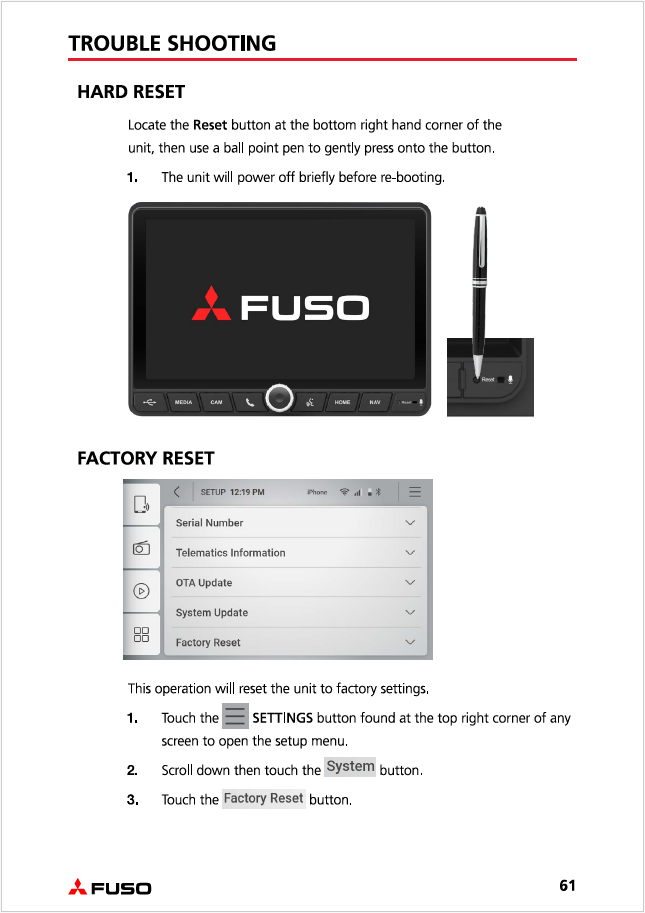
A. Reset your vehicle multimedia system:
If all else fails, try resetting your vehicle multimedia system. This can sometimes resolve more complex issues that may be affecting CarPlay. We suggest trying the hard reset and if issue still persists to do a factory reset.
Please see below from page 61 of User Manual.
B. Delete the device from your CarPlay list in phone:
Follow the below steps:
Go to Settings > General > CarPlay > Select device to delete > Forget This Car > Forget.
It is then recommended to restart the phone and then reconnect to CarPlay radio to re-establish fresh connection.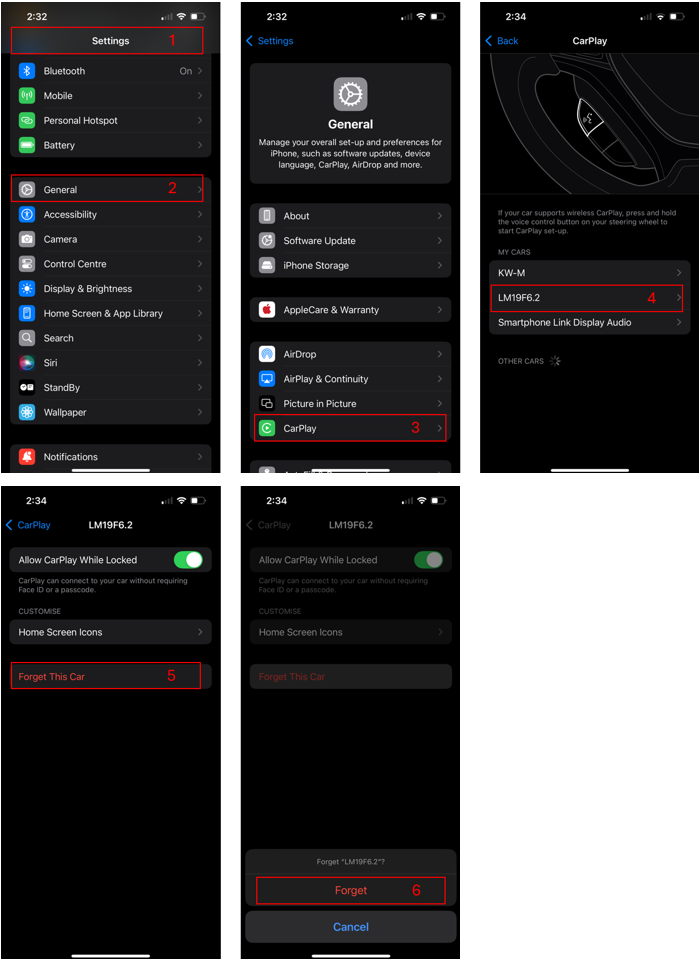
It is worth noting that sometimes "issues" are introduced after IOS update and the above steps are the recommended approach to re-establish a new connection.
**Cleaning the iPhone Lightning/USB C Connector**
In addition to the steps mentioned above, another common issue that can affect CarPlay functionality is a dirty or obstructed phone port. If you are experiencing connectivity issues with CarPlay, it may be worth checking and cleaning the phone port on your iPhone. Here's how you can do it:
1. Power off your iPhone: Before cleaning the phone port, make sure to power off your iPhone to avoid any potential damage.
2. Use a flashlight: Use a flashlight to carefully inspect the phone port for any lint, dust, or debris that may be blocking the connection.
3. Use a soft brush or toothpick: Gently brush the inside of the phone port with a soft brush or carefully use a toothpick to remove any visible debris. Be very careful not to damage the port or push any debris further inside.
4. Use compressed air: If you have compressed air available, you can use it to blow out any stubborn debris from the phone port. Hold the canister upright and use short bursts of air to avoid causing any damage. (Caution: Only use canned compressed air and not a compressor to prevent damage from excessive air pressure).
5. Reconnect your iPhone: Once you have cleaned the phone port, reconnect your iPhone to your car's USB port or wireless connection and check if CarPlay is working properly.
(Disclaimer: If you are not confident to do this then take your phone to a mobile repair shop as they will have suitable tools to do this).
Was this article helpful?
That’s Great!
Thank you for your feedback
Sorry! We couldn't be helpful
Thank you for your feedback
Feedback sent
We appreciate your effort and will try to fix the article